1. Change History
4.7.1 (21. Jul 2025)
-
Fix: All values of customer optional set of data are now getting displayed
4.7.0 (03. Jul 2025)
-
Fix: Requests to Remote API with wrong authentication credentials now return a 401 response (previously 302)
-
Adapted conformance tests to latest revision of EN 17240:2024
-
Test parameter NG-ACK Value can now be set to "none" to not send an AL-ACK in final SIP response
-
Added feature to transfer phones between related user groups, see Transferable Phones
-
Updated coloring scheme of buttons on dispatch page
-
Added feature to drop a call via dispatch page or Remote API
-
Remote API Version 1.14
4.6.1 (17. Jun 2025)
-
Fixed bug that prevented conformance test results from being deleted
4.6.0 (19. May 2025)
-
Added an updated inband modem worker implementation based on PJSIP. Worker implementation in use can be switched on the configuration page. For the time being the legacy worker implementation stays the default
-
Fixed bug in legacy worker that could lead to the worker crashing when receiving an MSD
-
Added "Other Phone Number" column to SMS table that shows sender address for outgoing messages or recipient address for incoming messages
-
Fixed bug in EN 16464 / PSAP 3.1.7.10 conformance test which could lead to unexpected test cancellation when user supplied MSD was invalid
4.5.0 (22. Apr 2025)
-
Enhanced SIP INVITE for PSAP callback in NG eCall scenarios by adding Priority, Accept, and Recv-Info headers (according to 3GPP TS 24.229 V19.2.0 clause 5.1.6B)
-
Included the Accept header with 'application/EmergencyCallData.Control+xml' in various other relevant cases
-
In IVS simulation mode received NG MSD acknowledgments will now be checked for standard conformance and the time of arrival will be logged
4.4.0 (11. Feb 2025)
-
Fixed bug that lead to INFO occurring twice in Allow header of outgoing SIP messages
4.3.2 (30. Jan 2025)
-
Fixed bug in SIP parser leading to loss of call SIP logs when a SIP message without content type header was encountered
4.3.1 (19. Dec 2024)
-
Added direct link to single call to call details
4.3.0 (19. Nov 2024)
-
Added SMPP as SMS provider
4.2.0 (07. Oct 2024)
-
Remote API Version 1.13
-
Added call.calledSubscriber and dataSet.type to CSV export
-
CSV exports now always contain the raw MSD even if can’t be decoded
-
If a call in a CSV export contains more than one MSD then the call.* fields are empty for all but the first row of the call apart from call.id which is always filled
4.1.1 (29. Jul 2024)
-
Fixed bug in database changeset preventing application startup if a test case with no test parameters was encountered
-
Removed references to OECON support from user manual
4.1.0 (25. Jun 2024)
-
Added test parameter "Reject Call Mode"
-
Log messages originating from the inband modem worker now have log level "worker" in call detail log
-
NG MSD acknowledgments can now be included in the final SIP INVITE response when an incoming call is rejected
-
ERA-GLONASS can now be enabled per user group
-
Added test parameter "AL-ACK Handling"
4.0.0 (18. Jun 2024)
-
Modernized user interface, added dark mode
-
Added support for Ubuntu 24.04 and Asterisk 20.7.0
-
Added feature to expire user account after a certain date
-
Added feature to generate a random password when creating a user account
-
Added switch to force user to change password on next login
-
Added easy navigation from list of calls to a certain phone
-
Added easy navigation from list of phones to a certain test case
-
Added new filter to calls page supporting more filter options
-
Added warning banner when license will expire in less than three months
-
Added display of server timestamp for incoming SMS (displayed as "Delivered to Equipment")
-
Added feature to change report headers when exporting conformance test results
-
Added option to add a test case more than once to the same test case group
-
Added colors to MSD button in list of calls, inband only: blue, ng only: green, both: yellow
-
Added link to current user manual to user context menu
-
Merged IVS dispatch and PSAP dispatch pages into one dispatch page
-
Revised dispatch page layout to better accommodate smaller screen sizes
-
Added display of incoming SMS on dispatch page if SMS contains an MSD
-
Added filter to list of conversations on dispatch page
-
Added option to show more or less information per conversation on dispatch page
-
Added ability to filter for tags in phone number input fields
-
Added display of called subscriber to dispatch and calls pages
-
Added current Remote API documentation to user manual
-
Added "auto" option to test parameter NG Ack Value which only acknowledges correct MSDs
-
Added new test parameter NG send-data Response
-
Added history to test cases showing most recent changes to test parameters and who changed them
-
Adapted conformance tests to latest revision of EN 16454:2023
-
Added warnings to MSD decoder when OID is unknown or MSD contains extended fields or sequences
-
Added feature to record RTP traffic per call controlled by test parameter
3.10.0 (20. Nov 2023)
-
Remote API Version 1.10
-
Process NG MSDs that are longer than 140 bytes
3.9.0 (25. Sep 2023)
-
Remote API Version 1.9
3.8.0 (06. Mar 2023)
-
Remote API Version 1.8
-
Added workers on demand feature
3.7.0 (01. Feb 2023)
-
Added support for EU NCAP 8.1
-
Added support for tel URIs
-
Remote API Version 1.7
3.6.0 (06. Sep 2022)
-
Fixed bug in retain calls function which deleted too many calls
-
Added support for sms77.io provider
3.5.0 (25. Mar 2022)
-
Added newsticker
3.4.0 (23. Sep 2021)
-
Added support for MSD version 3
-
Added permission flag to phones to disallow outgoing calls
-
Bugfix: Proper input validation to avoid forever running conformance tests
3.3.0 (29. Apr 2021)
-
Added metrics for server monitoring
-
Bugfix: Access to remote API websocket
3.2.0 (10. Aug 2020)
-
Remote API Version 1.1
-
Remote API for Conformance Tests 1.0
3.1.0 (15. Nov 2019)
-
Added remote API
-
Added conformance test support (EN17240 and EN16454)
-
Added IVS test parameter for automatic MSD requests
-
Added IVS test parameter for automatic callback
3.0.0 (25. Sep 2019)
-
Support for NG eCalls via SIP messaging for PSAP and IVS simulation alongside legacy eCalls via inband modem
-
SIP Message Log
-
Group specific dialplan context for making external calls
-
License Key
2. Introduction
An eCall is a telephone call where a Minimum Set of Data (MSD) in transferred from an In-Vehicle-System (IVS) to a Public Safety Answering Point (PSAP) either through an In-Band modem or SIP messages. The eCall Development Server can simulate the PSAP or IVS side of a call and enables the user to change a wide range of configuration options and inspect the outcomes of the call.
This document describes the web interface of the eCall Development Server. To access the web interface you need a JavaScript enabled modern web browser. Usage of one of the following browsers is recommended:
-
Google Chrome
-
Mozilla Firefox
3. Editions
There are two editions of the eCall Development Server. The eCall Development Server is available as a stand-alone server or as a hosted solution. ERA-GLONASS support is optional in both editions.
4. References
[1] …
5. Login
To login to the system enter the URL http://<IP-address-of-server> into the address bar of your browser.
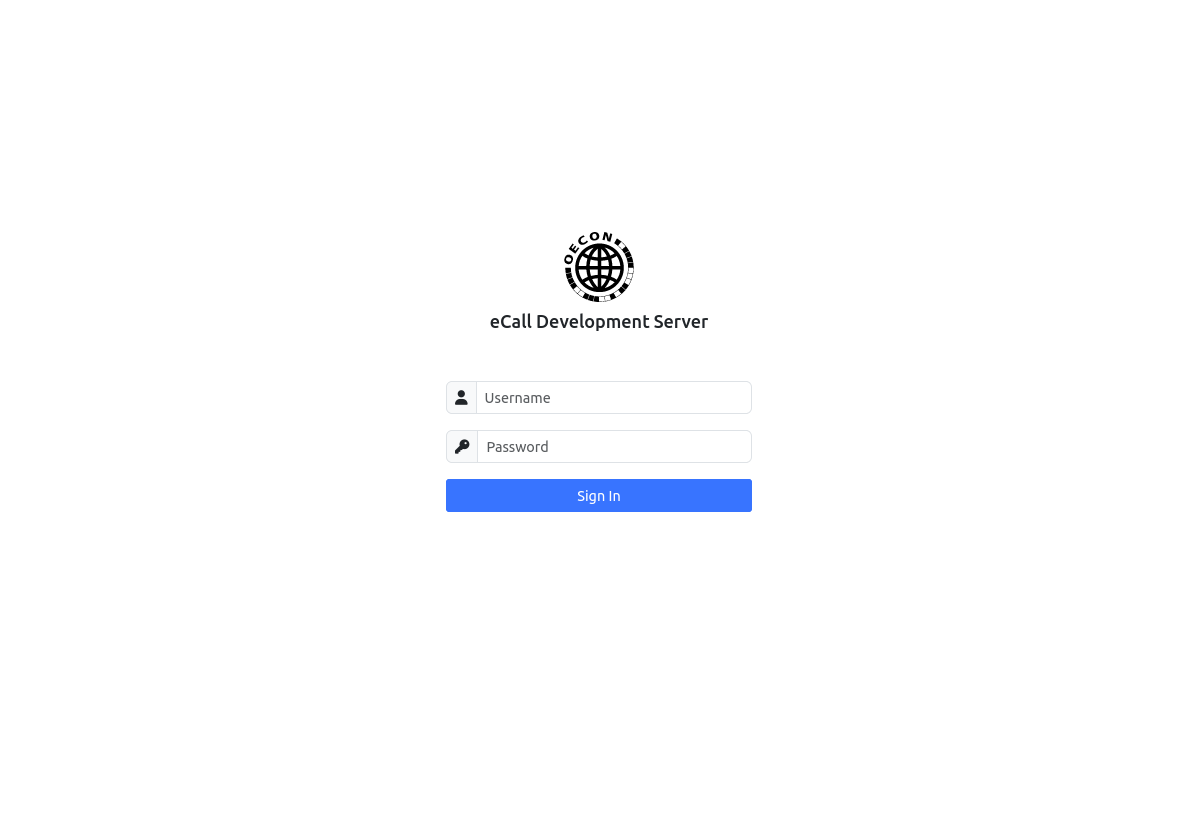
You will be prompted for a user name and password. The default configuration of the system comes with a user admin and password 1234. It is recommended to change the password on the user profile page.
6. Calls
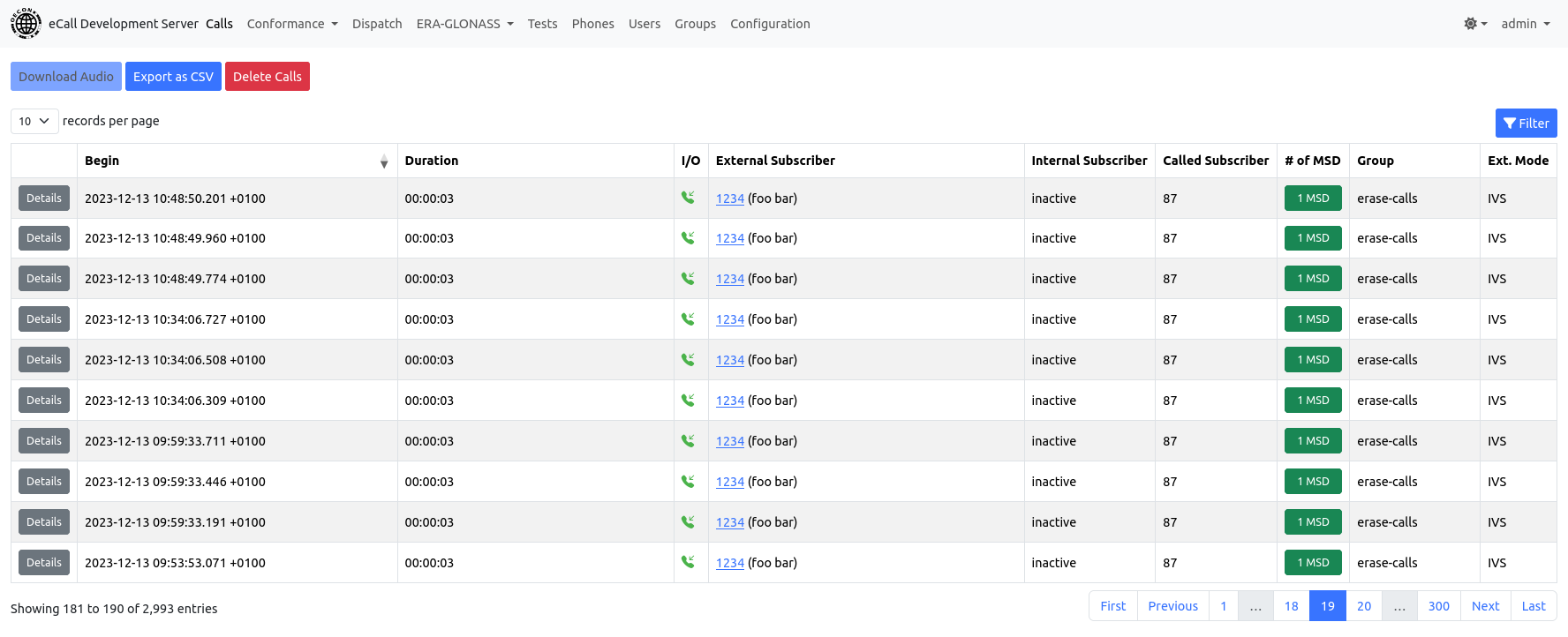
The calls page shows all calls that were handled by the eCall Development Server in the past. The calls are being displayed in a table with the following columns:
-
Begin: timestamp of when the call began
-
Duration: the length of the call
-
I/O: whether the call was incoming or outgoing
-
External Subscriber: the external subscriber (and tag if one is present)
-
Internal Subscriber: the internal subscriber
-
# of MSDs: the number of transmitted MSDs
-
if the button is blue the MSDs are of type
inband -
if the button is green the MSDs are of type
ng -
if the button is yellow the MSDs are of mixed type
-
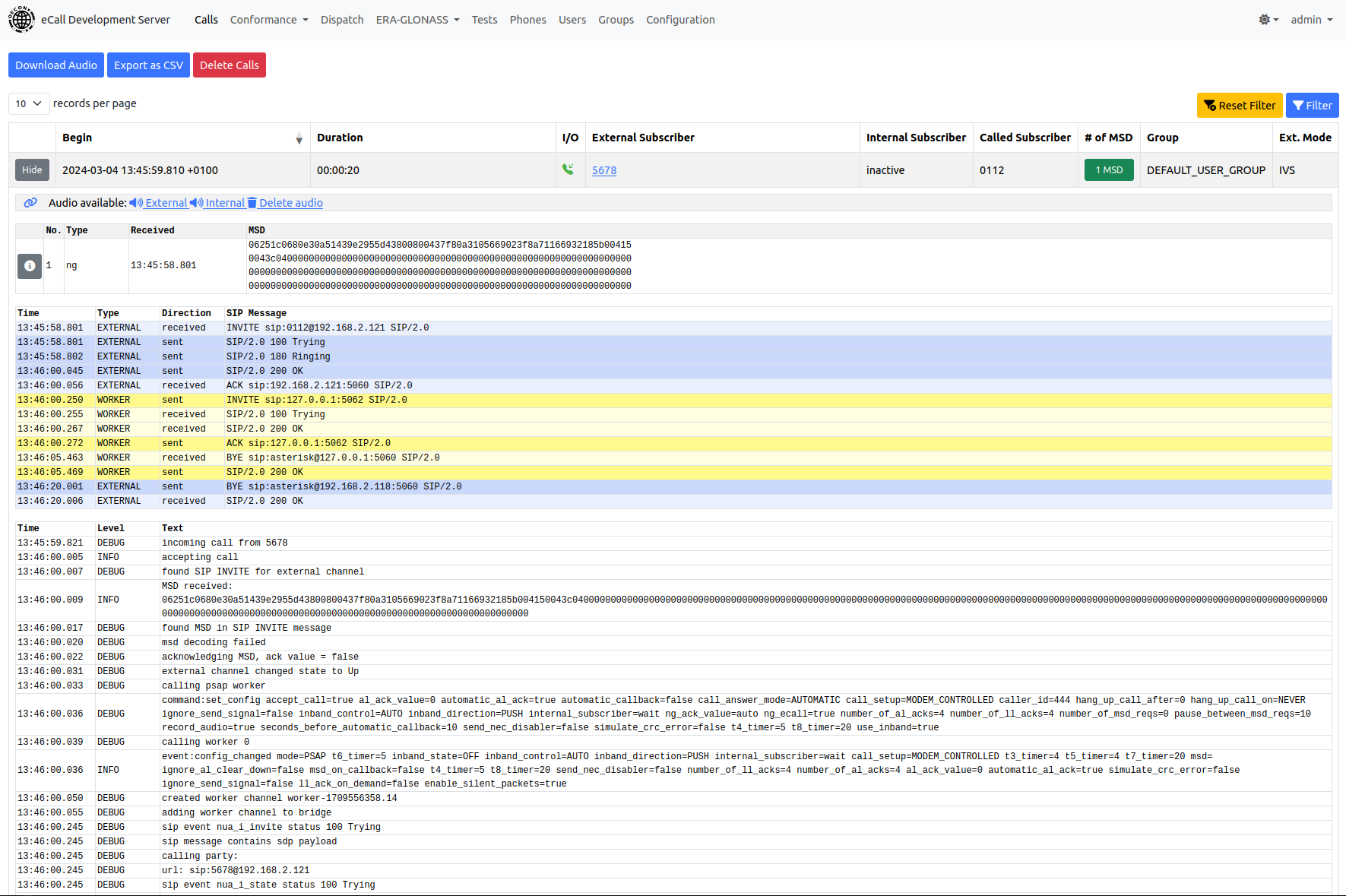
If you click the button Details on the left of a call row the row
expands and shows additional information of the call and the hex encoded
MSDs if there was at least one received or sent. Each MSD is shown with
its type and timestamp. Type is either inband for data sets
transmitted via inband modem or ng if transmitted via SIP messages.
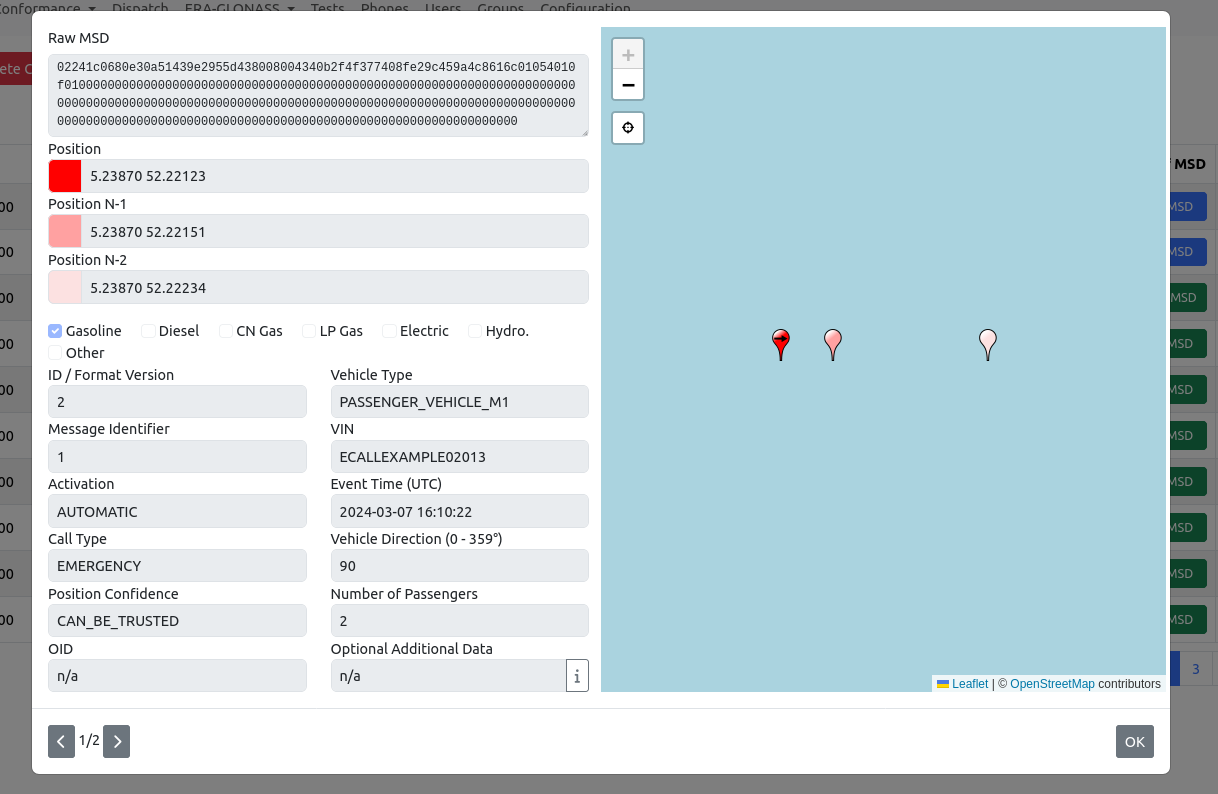
Next to each encoded MSD is a button to open a decoded view of the MSD.
Below the list of MSDs is the SIP message protocol showing every message transmitted between PSAP and IVS as well as a worker in case of legacy eCalls. Workers command the inband modem used for data transmission in legacy eCalls. Internal messages are marked in red, external ones in blue and worker messages are shown in yellow. Each one using a darker shade for sent and a lighter one for received messages. SIP messages can be expanded and collapsed by clicking them.
The call log below the SIP messages protocol shows all events during an eCall in chronological order.
6.1. Audio Recordings
If audio recording has been enabled for the eCall Development Server then download links for the recordings can be found in the call details. There is also a delete link to delete only the audio recordings of a single call.
Additionally there is a button “Download Audio” to download the recordings of all calls of one day. To enable the button the calls table has to be filtered down to a specific time range using the filter.
6.2. RTP Recordings
If RTP recording has been enabled for the eCall Development Server and the corresponding test parameter has been set to true then a button will appear which allows to generate graphs from the recorded traffic which show the data rate of the call’s RTP media sessions.
Additionally, users with ROLE_ADMIN can download traffic captures as a PCAP file, which can be read with Wireshark for example.
6.3. CSV Export
To download calls in a CSV file click the button “Export as CSV” at the top of the page. The export function respects the currently set filter of the calls table. Setting no filter allows to download every call in the data base.
6.4. Deleting Calls
Calls can be deleted from the data base using the button “Delete Calls”. This button is only visible if the currently logged in user has an access level of at least ROLE_GROUP_ADMIN. The delete function respects the currently set filter of the calls table. Deleted calls cannot be restored. If audio recording is enabled then the audio recordings of the calls will also be deleted.
7. Dispatch
The dispatch page offers a live view of incoming and outgoing calls of PSAPs and IVSs as well as incoming SMSs when the SMS contains an MSD message. Only the conversations that were made during the last five minutes are on display (with the exception of the currently selected conversation which stays as long as you don’t change the page).
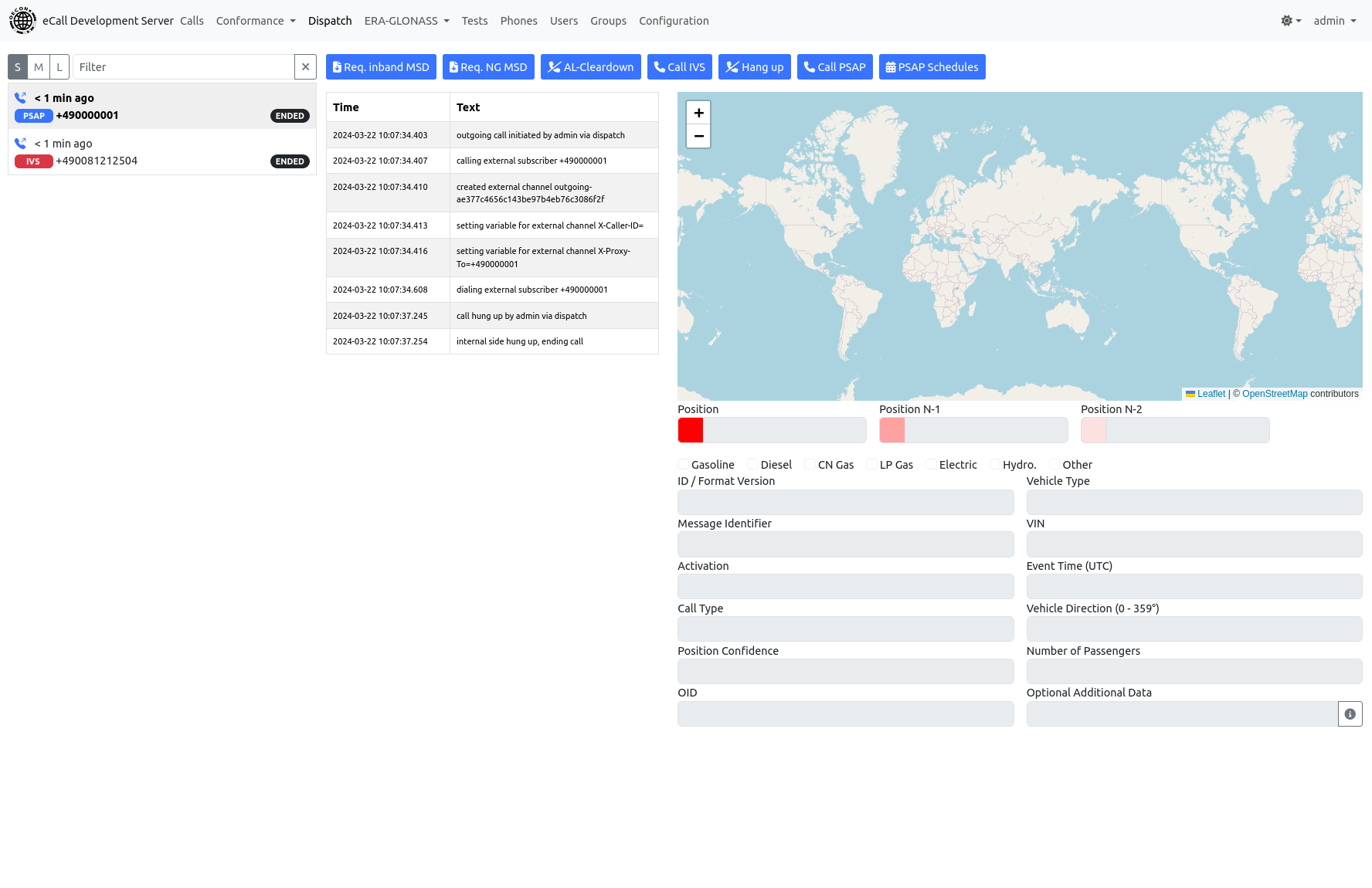
The list of conversations has several display modes which control the amount of information being shown:
-
Small: Incoming or outgoing call, relative timestamp, PSAP, IVS or SMS, tag, external call state -
Medium: Additionally shows internal subscriber and internal call state -
Large: Additionally shows called subscriber for incoming calls
The filter allows to show only conversations matching the filter string. The filter string is case-ignoring, partially matched to:
-
external subscriber
-
external subscriber tag
-
internal subscriber
-
the conversation mode, which is one of: PSAP, IVS, SMS
A conversation can be selected by clicking on its corresponding entry. Then the log view, the MSD fields and the map will be updated accordingly. If the selected conversation is a SMS, then the SMS details are shown in place of the log view instead.
If the first row is selected new conversations coming in will automatically be selected, deselecting the previously selected conversation. This is to ensure that an operator will always see the newest conversation coming in. If any other conversation than the newest one is selected for viewing it will stay selected even if a new conversation comes in. This is to make it more convenient to keep a conversation open for a longer period of time. To switch back to the automatic behaviour just select the first/newest conversation in the list.
There are two buttons to request MSD transmission in the currently selected call by inband or SIP transmission. If there is no call ongoing or the selected call has already ended clicking the button will have no effect.
The AL-Cleardown button also requests a MSD but sends an AL-ACK value of 2 to signal the IVS to clear down the call.
The Call IVS button can be used to make an outgoing call. Note that this button might be absent if the currently logged in user doesn’t have the permission to make outgoing calls.
The Hang Up button can be used to terminate the currently selected active call. The Drop Call button also terminates the currently selected active call but does not send a SIP BYE, all SIP and RTP data flows will be terminated abruptly.
A PSAP can be called using the Call PSAP button. Only a PSAP that has been previously created on the Phones page can be called. You will be asked how many concurrent calls should be created. The maximum number of concurrent calls is limited by the number of available workers in IVS mode if you are placing legacy eCalls using an inband modem. With NG eCalls the maximum number of concurrent calls is 100. Note that this button might be absent if the currently logged in user doesn’t have the permission to make outgoing calls.
The PSAP Schedules button opens a modal window showing the currently configured call schedules.
The Schedule Call button can be used to schedule automatic calls to a PSAP. Available settings per schedule are: the number of calls to be made, the interval in minutes, the PSAP phone number, a repeat count and an initial delay in minutes before the first call is to be made.
8. Phones
Every call has to have a phone entry associated with it which represents the external subscriber. Phones can either be entered manually on the phone administration page or automatically when the system’s global call acceptance mode is set to “Open” (see Call Acceptance).
Click on the button at the top of the page to create a new phone.
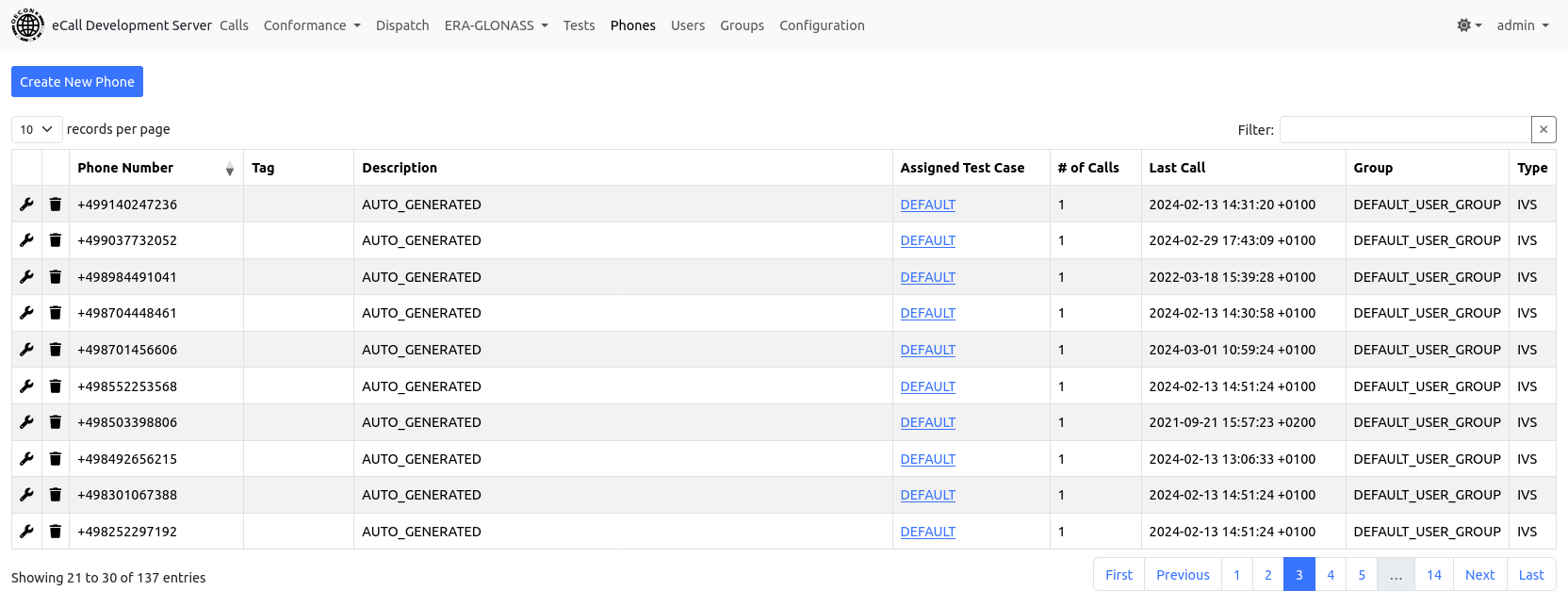
To edit a phone’s properties click on the wrench icon next to the entry. In the modal window you can change the phone number, the tag, the description, the test case and email addresses.
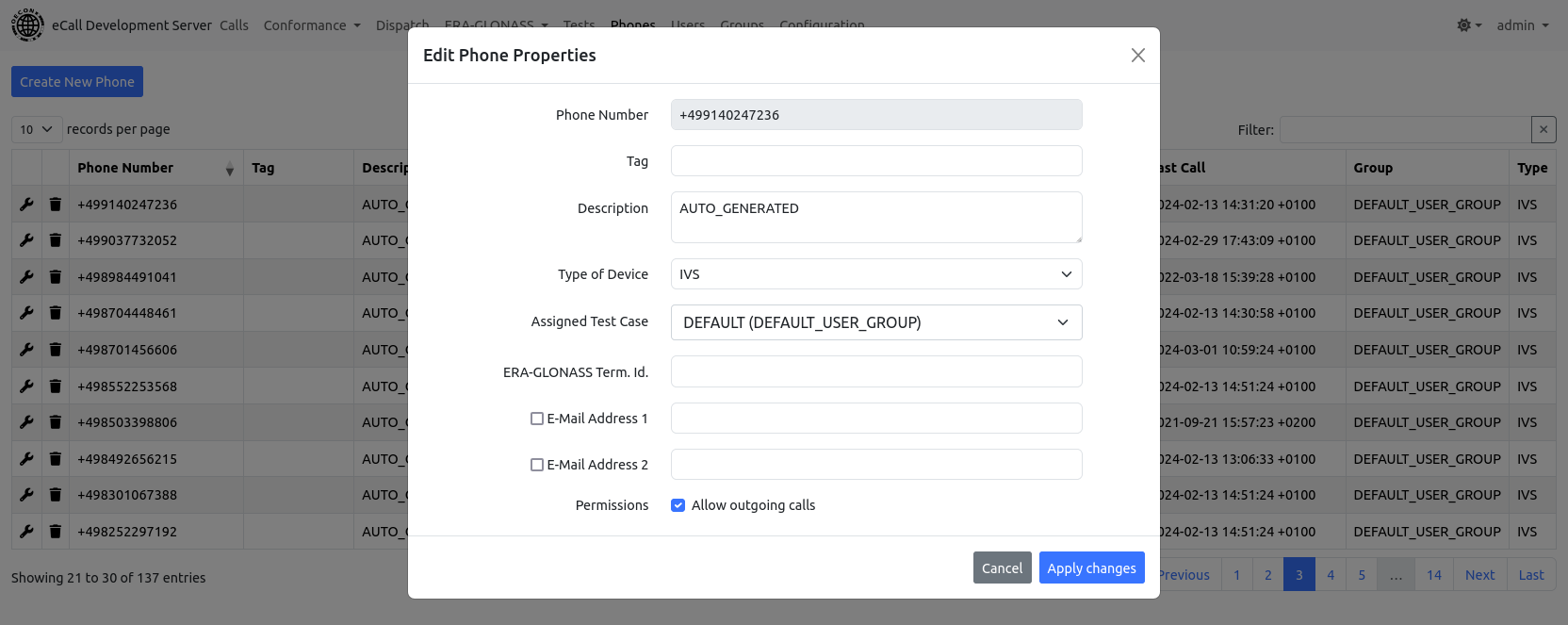
Every phone has a type of device which can be IVS or PSAP. This configuration setting is absent if the active user’s group is only allowed to do one of IVS or PSAP simulation.
Every phone belongs to a user group. The user group can be changed by assigning a test case of the desired user group to the phone.
Up to two email addresses can be assigned to a phone. Whenever a call to or from that phone terminates the system will send a protocol email to the configured addresses. Note that this only works when the administrator has activated email functionality on the system configuration page.
Outgoing calls can be allowed or disallowed per phone. If outgoing calls are disallowed no user can make any outgoing callls to that phone.
A phone can be deleted by clicking on the trash can icon next to it. Only users with ROLE_GROUP_ADMIN access level can delete phones that already have calls associated with it. The call data will be deleted along with the phone. Users below ROLE_GROUP_ADMIN access level can only delete a phone as long as it has no calls associated with it.
8.1. Transferable Phones
If the current user’s user group has at least one related group and the current user has the ROLE_PHONE_ADMIN access level then the Transferable Phones button will appear near the top of the phone administration page. It will open a table of all phones in related groups that may be transferred to the current user’s user group.
Upon transfer the user has to select one of the current user group’s test cases which will be assigned to the phone once it has been successfully transferred.
Group relationships can only be configured by a user with ROLE_GROUP_ADMIN access level.
9. Tests
Test cases can be defined and assigned to a phone. A single test case can be assigned to multiple phones. Test cases control the behaviour of the system when a call to or from a phone to which the test case is assigned is in progress. A test case consists of a collection of test parameters.
You can also create groups of test cases. A test case group consists of an ordered list of test cases. If you assign a test case group to a phone the first test case of the group will be the active one. That means on the next call this test case will be used. Once that call has ended the next test case of the group will be made the active one and will be used for the next call.
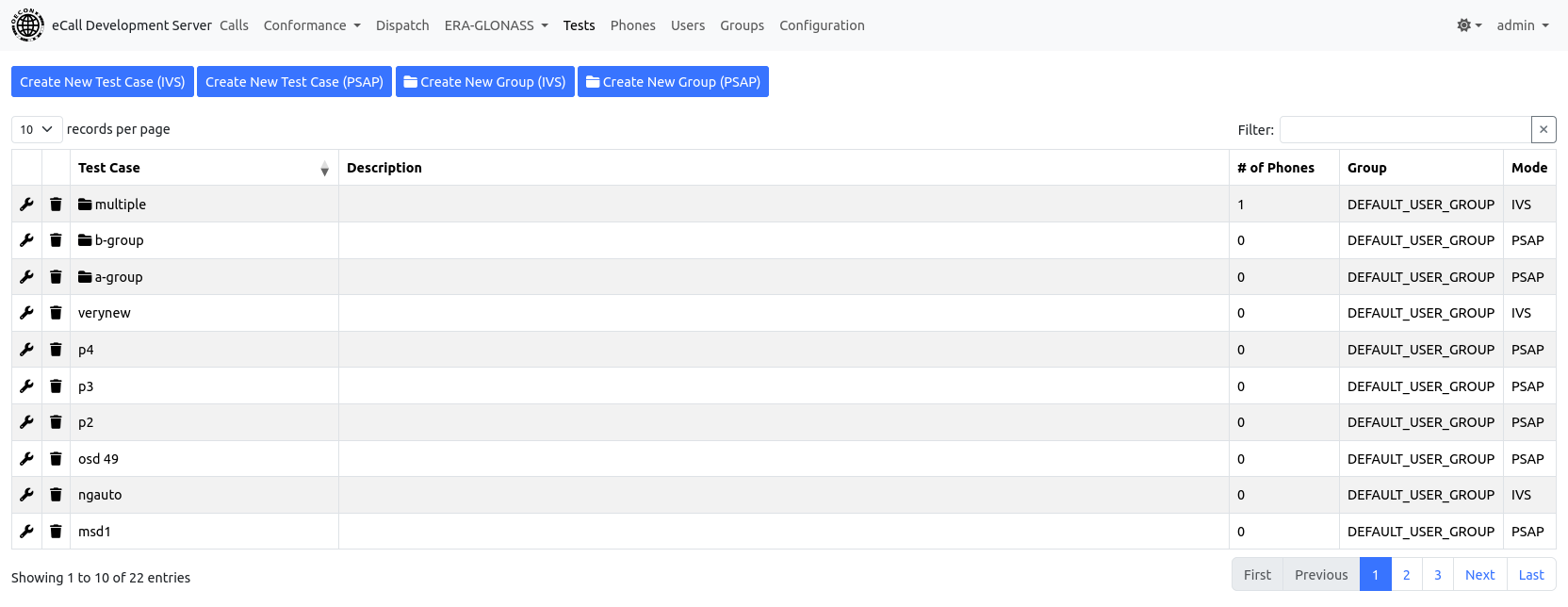
There can be test cases for an IVS or for a PSAP. These have different kinds of test parameters.
Click on one of the buttons at the top of the page to create a new test case.
To edit a test case’s parameters click on the wrench icon next to it. In the modal window you can change the test case name, the description, the user group (if you have ROLE_GROUP_ADMIN or higher) and all test parameters.
The available IVS test parameters are:
| Test Parameter | Description |
|---|---|
Accept Call |
If set to false every incoming call will be refused with a busy signal. |
Reject Call Mode |
Defines how an incoming call will be rejected when "Accept Call" is set to false. When "No Answer" is set then no final SIP response will be sent. |
Enable Inband Modem |
If set to true, MSDs will be transmitted via voice channel using an inband modem. |
Enable NG eCalls |
If true, MSD transmission via SIP messages is enabled. |
NG-ACK Value |
The <received> value of the final SIP response to an incoming INVITE. |
AL-ACK Handling |
Set to fixed to use the value of parameter "AL-ACK Value" or set to auto to make AL-ACK dependent on validity of received MSD. |
AL-ACK Value |
The value of the application layer acknowledgement that will be sent after a MSD was received. |
Number of AL-ACKs |
The number of application layer acknowledgements that will be sent after a MSD was received. |
Number of LL-ACKs |
The number of link layer acknowledgements that will be sent after a MSD was received. |
Simulate CRC Error |
If set to true the inband modem will always behave as if a received MSD contained a CRC error. That means that no acknowledgments will be sent. |
T4 Timer |
The value of the T4 timer in seconds (wait for initiation signal). |
T8 Timer |
The value of the T8 timer in seconds (maximum MSD transmission time). |
Send NEC Disabler |
If true a 2100 Hz tone will be sent for two seconds upon detecting the SEND signal from the IVS. |
Inband Direction |
The mode of the inband modem which can be set to PULL or PUSH. |
Ignore SEND Signal |
If set to true a received SEND signal from the IVS will be ignored. |
Call Setup |
If set to MODEM_CONTROLLED the call to the internal subscriber will only be established after the initial MSD transmission is complete. If set to ASAP the call to the internal subscriber will be established as soon as the call from the external subscriber is established. |
Request additional MSDs |
Defines how often the PSAP simulation automatically requests an MSD from the IVS. |
Pause between MSD requests |
The pause in seconds before and between automatic MSD requests. If the number of additional MSD requests is set to 0 this setting has no effect. |
Automatic Callback |
If set to true a callback will be scheduled after an incoming call was hung up. |
Time before Automatic Callback |
Defines the time between incoming call hang up and automatic callback attempt. If Automatic Callback is set to false this setting has no effect. |
Hang Up Call On |
The call will get hung up if the configured event is detected. There will be no delay between event detection and call hang up. If the selected event is LL-ACK or AL-ACK the hang up will occur after the configured number of acknowledgments (see test parameters above) have been detected. The default value is NEVER meaning that the call will not get hung up. |
Hang Up Call After |
This sets the maximum duration that a call can last. The call will be automatically terminated if this duration is exceeded. |
Call Answer Mode |
If set to AUTOMATIC every call will be answered by an automatic message. If set to MANUAL every call will be forwarded to the extension that is defined by Internal Subscriber. |
Record Audio |
If set to true and audio recording has been enabled for the eCall Development Server then the speech will be recorded. |
Record RTP |
If set to true and the Traffic Capture Service has been enabled for the eCall Development Server then the call’s RTP traffic will be recorded. |
Internal Subscriber |
This is the extension where calls are being forwarded to if Call Answer Mode is set to MANUAL. |
Caller ID |
If set, this is the caller ID that is going to be used on outgoing calls to a PSAP. If empty, a default will be used. Note that this setting requires support from the telephony connection and may not be available or configured in your installation. |
The available PSAP test parameters are:
| Test Parameter | Description |
|---|---|
MSD |
The MSD to be sent when requested by the PSAP. Multiple MSDs can be configured. The MSDs will be sent in the order in which they are defined. |
MSD Auto Set Message ID |
If true, automatically increment message identifier field for each sent MSD. |
MSD Auto Set Timestamp |
If true, automatically insert the current time into each sent MSD. |
Accept Call |
If set to false every incoming call will be refused with a busy signal. |
Reject Call Mode |
Defines how an incoming call will be rejected when "Accept Call" is set to false. When "No Answer" is set then no final SIP response will be sent. |
Enable Inband Modem |
If set to true, MSDs will be transmitted via voice channel using an inband modem. |
Enable NG eCalls |
If true, MSD transmission via SIP messages is enabled. |
NG URN |
The urn to call for NG eCalls. Use external subscriber will use a SIP URI derived from the external subscriber’s phone number instead. |
NG send-data Response |
Defines how the server will respond to a send-data request via SIP INFO message. By default the handling will be standard-compliant, i.e. the server sends an MSD if the datatype equals eCall.MSD or a failure message with reason data-unsupported if the requested datatype is unknown. |
Simulate CRC Error |
If set to true the inband modem will always introduce errors into the transmitted MSD so that the CRC checksum will not match. That means that the PSAP will not be able to successfully retrieve the MSD. |
T5 Timer |
The value of the T5 timer in seconds (wait for SEND MSD signal). |
T6 Timer |
The value of the T6 timer in seconds (wait for AL-ACK period). |
T7 Timer |
The value of the T7 timer in seconds (MSD maximum transmission time). |
Call Setup |
If set to MODEM_CONTROLLED the call to the internal subscriber will only be established after the initial MSD transmission is complete. If set to ASAP the call to the internal subscriber will be established as soon as the call from the external subscriber is established. |
Hang Up Call After |
This sets the maximum duration that a call can last. The call will be automatically terminated if this duration is exceeded. |
Call Answer Mode |
If set to AUTOMATIC every call will be answered by an automatic message. If set to MANUAL every call will be forwarded to the extension that is defined by Internal Subscriber. |
Record Audio |
If set to true and audio recording has been enabled for the eCall Development Server then the speech will be recorded. |
Record RTP |
If set to true and the Traffic Capture Service has been enabled for the eCall Development Server then the call’s RTP traffic will be recorded. |
Internal Subscriber |
This is the extension where calls are being forwarded to if Call Answer Mode is set to MANUAL. |
Caller ID |
If set, this is the caller ID that is going to be used on outgoing calls to an IVS. If empty, a default will be used. Note that this setting requires support from the telephony connection and may not be available or configured in your installation. |
10. Roles and Permissions
The system’s objects and relations are depicted in the next image.
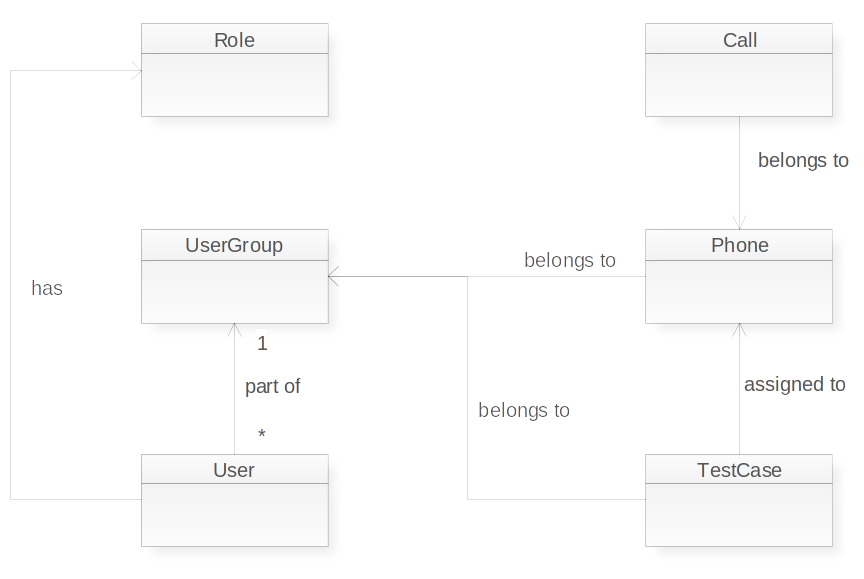
Every user belongs to exactly one user group. Every user also has exactly one role which defines which actions the user is permitted to do. The roles are described in the following table.
| Access Level | Privileges | Editions |
|---|---|---|
ROLE_ADMIN |
No restrictions, especially access to system configuration page |
stand-alone |
ROLE_GROUP_ADMIN |
May create user groups and change assignments from users to user groups |
stand-alone |
ROLE_USER_ADMIN |
May create users, but only within its own user group |
stand-alone |
ROLE_PHONE_ADMIN |
May create and change phones |
stand-alone |
ROLE_TEST_ADMIN |
May create and change test cases |
stand-alone |
ROLE_TEST_ASSIGNER |
May (un-)assign test cases to / from phones |
stand-alone |
ROLE_USER |
May see calls, test cases and phones but not modify anything |
stand-alone |
The roles are hierarchical which means that every role contains all privileges of all the roles below. For example a user with the role ROLE_TEST_ADMIN is allowed to do everything that a user with ROLE_TEST_ASSIGNER or ROLE_USER is allowed to do.
Users with a role of ROLE_USER_ADMIN or below are confined to their respective user group and can only see and change objects that belong to their user group. Users with role ROLE_ADMIN or ROLE_GROUP_ADMIN can see and change objects in all user groups.
Besides roles there are additional permissions that can be granted on a per user basis. Additional permissions are described in the following table.
| Permission | Description |
|---|---|
Make outgoing calls |
Allows the user to:
|
Send SMS |
Allows the user to send SMS. |
11. Users and Groups
Every user belongs to exactly one user group. In the default configuration the system has one user named admin which belongs to the DEFAULT_USER_GROUP. Neither the admin user nor the DEFAULT_USER_GROUP can be deleted, though they can be renamed.
The user administration page allows creating, updating, and deleting user accounts. You can also set user passwords, access levels, permissions and move users between user groups. You need an access level of at least ROLE_USER_ADMIN to access the user administration page.
The group administration page allows creating, updating, and deleting user groups. When creating a new user group a default test case is being generated automatically because every group must have a default test case.
Every user group can be set to allow its users access to IVS simulation functions, PSAP simulation functions or both.
Users and groups can be deactivated. A user can only login when both the user account and the group are active. If a group is deactivated incoming calls for phones belonging to that group are being rejected.
An expiration date for a user or a group can be set. When the date is reached the user or group is deactivated automatically.
When a SMS sender address for a group is set then all outbound SMS will be using that sender address, thus overwriting the global sender address.
There is a setting for each group that defines how long calls that are associated with this group are being retained. If this is set then an automatic job will run every day to delete all calls that are older than the configured number of days.
You can define which context in the Asterisk dialplan a group will use to place outgoing calls to external subscribers. If this field is empty, the context default-external-out will be used.
Each user group can have a number of related groups. The relationship is bidirectional, meaning if group A is related to group B then group B is also related to group A. A user with PHONE_ADMIN rights is able to transfer phones from a related group to his own group.
12. ERA-GLONASS
The ERA-GLONASS feature is only available if it is allowed by the license and if it is enabled for the current user group.
ERA-GLONASS is the Russian eCall system analogue to the European Union’s eCall system. The implementation is based on the following standards:
-
GOST R 54620-2011 Amendment No.1
-
GOST R 54619-2011 Amendment No.1
12.1. SMS
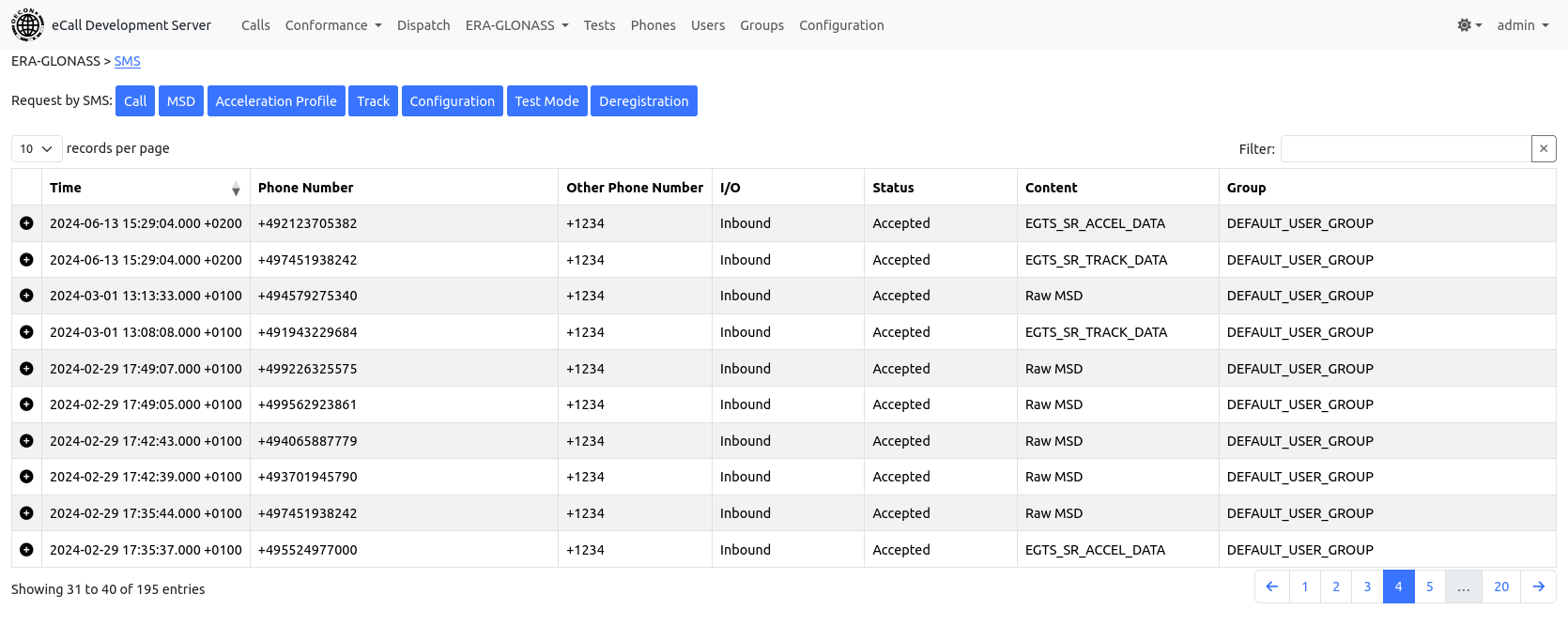
The SMS page shows all received and sent SMS. It is possible to request a call, a MSD, an acceleration profile or a track by SMS using one of the buttons at the top of the page. It is also possible to get or set IVS configuration parameters, start or stop test mode or request network deregistration by SMS. For inbound SMS a corresponding phone entry must exist in the system. If no phone exists the SMS will be ignored.
12.2. TCP/IP
The TCP/IP page shows all TCP connections of the past and where they were coming from.

Clicking on one of the table rows leads to the connection log for that connection.
Every TCP connection must be authenticated within 6 seconds or the server will close the connection. To authenticate the remote side must send a subrecord of type EGTS_SR_TERM_IDENTITY with a terminal identifier that matches one of the phone entries in the system.
12.3. Optional MSD Data
Optional data contained in a MSD with OID 1.4.1 or 1.4.2 gets decoded according to Appendix C of GOST R 54620-2011. Both the original ASN.1 definition and the newer one from Amendment No. 1 are supported.
13. Conformance Tests
The conformance test feature is only available if it is allowed by the license.
A conformance test allows testing a specific behaviour and always ends with a verdict of passed or failed. The available conformance tests are standardized in EN17240 (Next Generation eCall) and EN16454 (Inband modem based eCall).
13.1. Execution Page
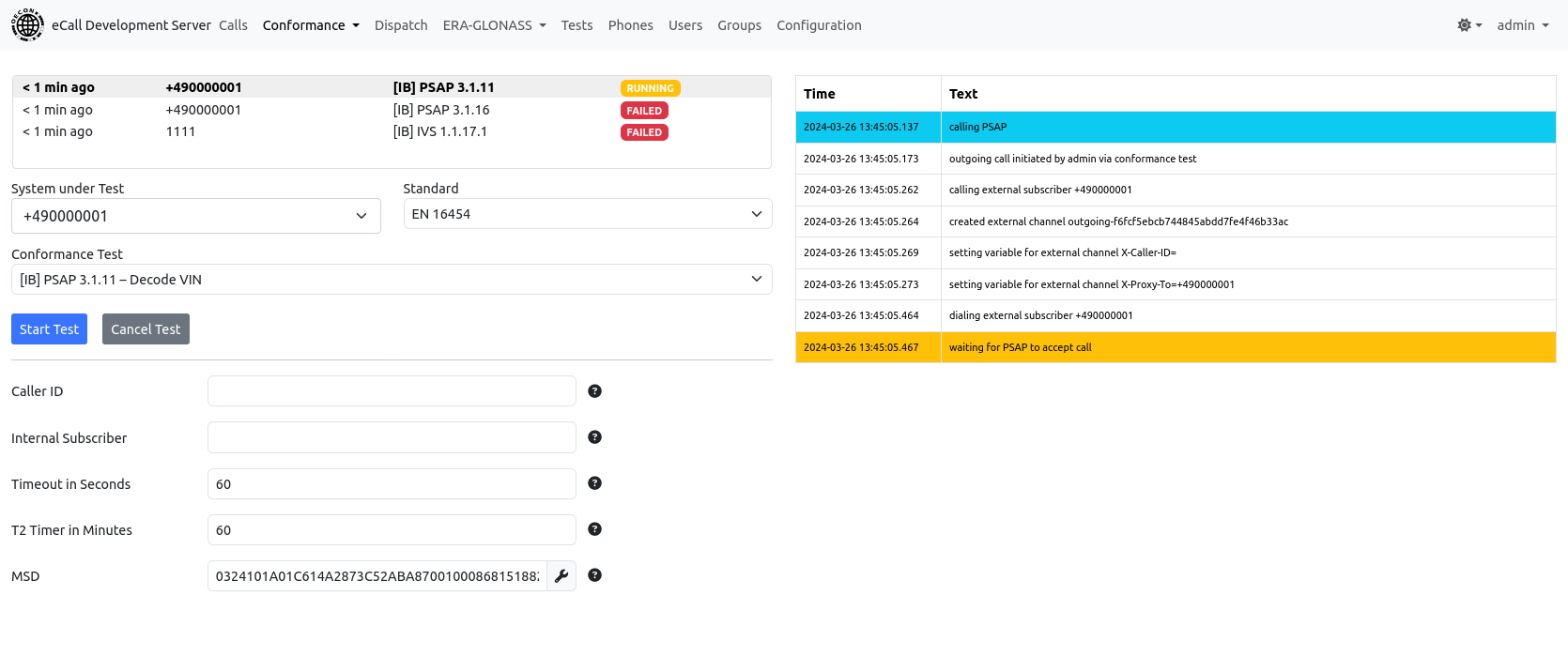
The conformance test execution page allows the user to execute a conformance test. After selecting a phone as the system under test, the test standard and a test, the test can be started by clicking the “Start Test” button.
During the execution of a conformance test the test case that is usually assigned to the system under test will be ignored.
A running conformance test can be cancelled by selecting the test in the list of recent conformance tests and clicking the “Cancel Test” button.
13.2. Results Page
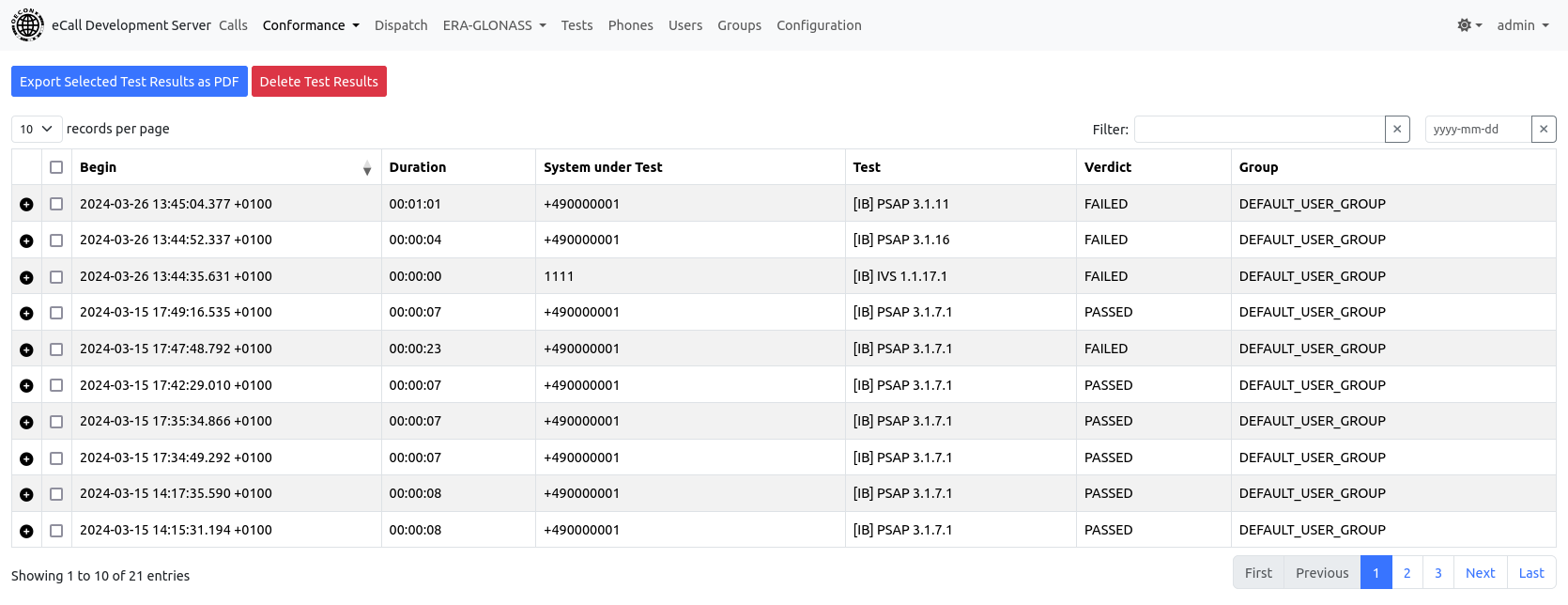
On the conformance tests results page the test results of already executed tests can be viewed and exported.
To export test results and generate a PDF with a conformance test report select the test results that you want to export by ticking the checkboxes next to it and then click the export button at the top of the page.
Test results can be deleted by clicking the “Delete Test Results” button. Note that this action deletes all test results according to the table filter (checkboxes are ignored). You need at least role TEST_ADMIN to delete test results.
14. Configuration Settings for Group Admins (only stand-alone)
These configuration settings are accessible at the group administration page if you have an access level of at least ROLE_GROUP_ADMIN.
14.1. Call Acceptance
This setting controls how incoming calls are handled when the external subscriber is unknown, i.e. no phone entry exists for the phone number of the external subscriber. The following options are available:
-
Open (Every call is being accepted. Unknown phone numbers are being entered automatically into the database.)
-
Closed (Only calls from known phone numbers are being accepted.)
14.2. Called Subscriber Mapping
This setting allows you to control into which user group new phones are placed if a calls comes in from a yet unknown phone number. By default every phone is placed into the DEFAULT_USER_GROUP. The default mapping is marked by the *. You can add additional mappings if your eCall Development Server is reachable under multiple phone numbers. The mappings are always matched as the last digits of the called phone number.
For example your server is reachable under phone numbers 123450, 123451 and 123452 and you already created some user groups A and B. If you want calls to number 123450 to create phones in group A and calls to 123451 to create phones in group B then you would create two mappings
-
0 → A
-
1 → B
while calls to 123452 would still use the default mapping.
The default mapping is only getting used if the “Call Acceptance” setting is set to “Open”. Every user defined mapping has an override setting. If you set this to true then this mapping also applies if “Call Acceptance” is set to “Closed”.
14.3. Global E-Mail Addresses
You can configure up to two email addresses here where test protocols are sent to. If a phone has at least one email address configured that email address has precedence over the global mail addresses.
15. Configuration Settings for Admins (only stand-alone)
You can reach the configuration page using the link in the navigation bar. You need an access level of ROLE_ADMIN to modify these settings.
15.1. E-Mail Setup
To enable sending of protocol emails a SMTP server has to be configured and activated here.
15.2. Map
The map that is being used to display MSD positions on dispatch page and the calls page can be configured here. The URL must point to a tile server that serves image tiles. By default the URL points to the public OpenStreetMap server at http://{s}.tile.openstreetmap.org/{z}/{x}/{y}.png

15.3. SMS Service
Choose the SMS service to use for outbound SMS messages. By default Nexmo is being used.
15.4. Nexmo (SMS)
This setting is only important if you intend to send and receive SMS for ERA-GLONASS with your server. First you need a Nexmo account which can be created at http://nexmo.com. Nexmo will provide an API key and an API secret which you will have to enter into the corresponding fields.
The field “Sender Address” is used when sending outbound SMS. Please use the international phone number format expected by Nexmo (without leading plus sign, e.g. 491234567890 for a number in Germany). The Sender Address should match a phone number that you have added to your Nexmo account using Numbers → Add Number at nexmo.com.
The URL field is by default https://rest.nexmo.com/sms/json. This is the URL that will be called by the eCall development server when sending a SMS. Normally you shouldn’t have to change that value.
Under API Settings in your account at nexmo.com you should set “Callback URL for Inbound Message” to http://<IP-address-of-server>/nexmo/inbound, and “Callback URL for Delivery Receipt” to http://<IP-address-of-server>/nexmo/delivery.
15.5. NowSMS
This setting is only important if you intend to send and receive SMS for ERA-GLONASS with your server. The implementation has been tested with Now SMS/MMS Gateway Lite Edition (v2015.06.24).
Sender Address can be left empty and will usually be ignored when NowSMS is used with a GSM modem.
URL should be set to the web interface of the computer with installed NowSMS.
To forward SMS from NowSMS to your eCall Development Server, NowSMS must be configured accordingly. You must enable option “Receive SMS Messages” in Modem tab. In 2-Way tab enable “Process received SMS Messages” and “Use 2-way command processor”. Create a rule with keyword ‘*’ and set “Run HTTP or Local Command” to
http://<IP-address-of-server >/nowSms/inbound?sender=@@SENDER@@&binary=@@BINARY@@&udh=@@UDH@@&pid=@@PID@@&dcs=@@DCS@@&data=@@FULLSMS@@
See SMS Service to enable NowSMS for outbound SMS.
15.6. seven.io (formerly known as sms77.io)
This setting is only important if you intend to send SMS for ERA-GLONASS with your server. You need an account with https://seven.io and an API key to send SMS through this provider.
The field “Sender Address” is used when sending outbound SMS. Please use the international phone number format (without leading plus sign, e.g. 491234567890 for a number in Germany).
The URL field is by default https://gateway.seven.io/api/sms. This is the URL that will be called by the eCall development server when sending a SMS. Normally you shouldn’t have to change that value.
To receive delivery notifications under Account → Developer → Webhooks at seven.io you should add a webhook and set URL to http://<IP-address-of-server>/sms77/delivery , method to “JSON Payload” and event to “DLR”.
15.7. SMPP
This setting is only important if you intend to send and receive SMS for ERA-GLONASS with your server. The implementation follows SMPP Integration Guide and is therefore Vodafone specific.
If enabled the eCall Development Server automatically connects to the specified SMPP host and port and uses a BIND operation to register to the SMSC. The specified system id and password will be used in the bind_transmitter message to authenticate to the SMSC.
The sender address is used as source address when sending outbound SMS. Please use the international phone number format (without leading plus sign, e.g. 491234567890 for a number in Germany).
The current session state is listed at the top of the configuration parameters. This should usually be BOUND_TRX if the eCall Development Server has successfully connected to the SMSC and is ready to send and receive SMS.
15.8. Worker Processes
The eCall Development Server uses background processes called workers to actually handle a legacy eCall with inband modem transmission. You need n workers to handle n eCalls simultaneously. The workers are using SIP and RTP to communicate with the telephony backend. If you intend to only handle NG eCalls, you don’t need any workers at all.
Every worker configuration consists of:
-
a zero-based index
-
a SIP port (UDP)
-
a SIP account, which is used in the from header in SIP messages
-
an internal subscriber, where calls are being forwarded to
-
a mode, which can be IVS or PSAP
You can add and remove workers with the “Add” and “Remove Last” buttons and change the configuration of an existing worker using the “Edit” button next to the worker. In the default configuration all workers are started when the systems starts and they will keep running as long as the system runs. It also possible to switch to an on demand mode. In this mode a worker will only be started once it has been requested and stopped once it is not needed anymore. The on demand mode therefore provides better resource utilization.
You can switch between the legacy worker implementation and the PJSIP worker implementation. The latter one is actively maintained and continually enhanced for stability and reliability. The legacy worker will eventually be phased out but stays the default choice for the time being.
Note that any changes will only be applied after the “Save” button was clicked.
15.9. Display Time Zone
You can change the displayed time zone here. This affects all time stamps on all pages.
15.10. Phone Numbers
If you only want to allow phone numbers of a certain format then you can configure a regular expression of the allowed format here. A description of regular expressions can be found here: https://docs.oracle.com/javase/7/docs/api/java/util/regex/Pattern.html.
15.11. Metrics
This setting allows enabling metrics which can be retrieved through http requests. Access to the metrics endpoint /actuator will be secured with basic auth with the configured user name and password.
15.12. License
You need a valid license key to run eCall Development Server (Version 3 and up). Please copy and paste the license key you have been sent from OECON P&S Support in the text field in this section. The software will instantly show the Licensee and the expiration date of your license once you press the Save button.
Without a valid license key installed eCall Development Server will show a red banner on every page informing you about the missing license.
The software will still receive and save eCalls without a valid license but you can’t see call details or decode a MSD. As soon as a valid license key is entered you can inspect all previously recorded calls.
15.13. Newsticker
To announce scheduled downtimes or anything else to all users, admin users can enter a message in the text field in this section. Once the checkbox is activated the message will be shown as a red banner at the top of every page.
15.14. Traffic Capture Service
The traffic capture service allows to capture the RTP traffic of calls. It consists of an internal and an external service. The external service is controlled by systemd and captures traffic using a native tcpdump process which communicates with the internal service over a named pipe. The internal service is responsible for assigning the packets to a call and assigning the packets to external, internal and worker channels.
If turned off then the Record RTP test parameter is without effect.
15.15. Reboot System
You can reboot the system using this button. You have to confirm the reboot before the reboot actually takes place.
15.16. Shutdown System
You can halt the system using this button. You have to confirm the shutdown before it actually takes place.